Import Settings with the Migration Wizard
The Migration
Wizard is a tool introduced in Ergosoft 16.6 to help take over data from
Ergosoft 16/17 into the latest version or migrate installations from system to system.
This procedure
works for User Data folders from version 15 as well as 16. You can either
import data from an installation of Ergosoft 15 on the same computer, or you
can e.g. copy the User Data folder from a different computer to easily migrate
and replicate a RIP configuration.
Using the Migration Wizard
The Migration
Wizard is integrated directly into the installation routine. Start the Ergosoft
installation as usual and progress through until the User Data Folder selection
window.
When an empty
User Data folder is selected, the installation routine will show the “Show Data
Migration Options” toggle.
It’s important
to note that the toggle will not appear when there is already data in the
selected User Data folder, so make sure that the default User Data path is
empty or create a new folder and select it.
Activating this
toggle will let you select which files and settings you want to import from the
previous installation.
Possible settings that can be imported are:
- Print Environments
- Print & Cut Queues
- Profiles
- Presets
- User Levels
- HotFolder
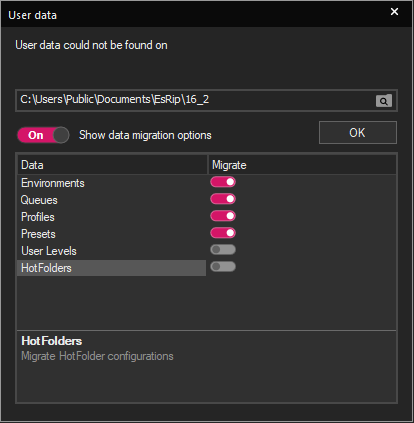
Once you have selected the data you want to migrate, confirm the User Data dialog. Another file browser window will appear where you can select your reference user data folder. Browse to the folder you want to use (Either a Version 15/16 User Data folder or a version 17 user data folder from another installation) and confirm. The settings from the reference folder will automatically be copied to your new installation.