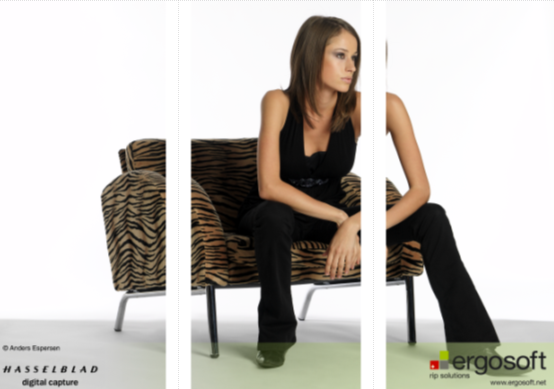
Tiling

Tiling

Images can be separated into horizontal and vertical stripes, also called tiles. This e.g. allows for large images to be printed in parts if their output size is larger than the printing width/material. Individual tiles may be rotated, scaled and edited like individual images to suit any application.

In function tiling is similar to crop, but used to cut up an image rather than cut out parts of it.
To access the tiling dialog, select an image and go to to Properties/ Tiling Icon Tiling.

Tile by Image Preset

Tiling can also be done through a predefined Image Preset the defines the tile size and position  To use a Preset, select it from the “Tile Preset” dropdown menu and click “Apply”.
You may also create a new Tile Preset on the fly by clicking the  Icon next to the dropdown menu. For more information on Image Format Presets, see Image Presets.

Preview Window

When the Tile dialog is selected, the JobComposer will display a preview window to show the effect of the current settings before applying them. The preview Window allows to see the distribution of tiles with the current settings, but also allows to change tile size by dragging the separating line between tiles and delete individual tiles by selecting them and pressing the red X icon. Tiles in the preview window can be set active or inactive by clicking on them. Click once to activate one or several tiles. Click again to deselect a tile.

Numerical Tiling Horizontal/Vertical

Tiling is defined through numerical values designating either the width or height of a tile.

To apply tiling to an image, select the image and go to to Properties & Actions /  Tiling.

Tiling can be done both Horizontally and vertically in their respective Tabs. The options for both types are the same.
Individual tiles are defined by entering the width/length into the Column Field. Values may be entered in the form of the measurement unit set in the RIP or as part fractions for same same sized tiles, e.g. entering 1/3 for the column in the horizontal tab will create a tile that is a third of the width of the image. After entering the value confirm with the button or by pressing the enter key. Any number of tiles can be defined within the width/height of an image.

Overlap

Tiling allows to set an Overlap that will extend each individual tile by a set value. This extension can be filled with either white/empty or a mirroring of the adjacent image content. This can be useful if the tiles are intended to be combined back together after printing to allow for an overlap to glue/stitch the tiles.

Fill Options

Fill options set how the overlap area should be filled.
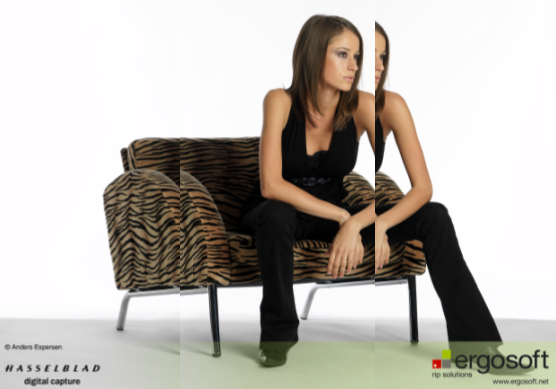
Overlap with Image FillImage Fill - : Will fill the overlap area with a mirror of the adjacent image area to better disguise the area where the individual tiles will be joined after printing.. 

A person sitting on a chair

AI-generated content may be incorrect.White – Fills the verlap area with white/nothing to preserve the paper white where the individual tiles will be joined after printi

    • Related Articles

    • Rotate, Mirror, Scale

      Rotate Rotating images is often useful to save media, diversify the print direction on a structured media etc. Note that Printing rotated images consumes more calculation time and therefore can reduce the output speed. To rotate or mirror an image, ...
    • About Application Defaults

      Application Defaults deals with the standard settings of Ergosoft RIP. These are the settings that are automatically applied whenever nothing else is set. You can use these to configure automatic operations done to every image when it is imported, ...
    • Composite Preset

      Composite Presets Format: <CompositePreset Version=”1”></CompositePreset> Composite Presets are sets of parameters relevant to the image (Such as Size, Rotation, Crop, ColorManagement Settings, etc.) that can be saved to easily be applied to images ...
    • Job Composer

      The JobComposer serves as the main program window and Job Layout of the Ergosoft RIP, for many users when the reference the Ergosoft RIP, they mean the Job Composer. The Job Composer can be launched either from its dedicated shortcut in Start > ...
    • ColorCombine

      Uses color separations, i.e. color channels separated into individual image files and combines them into a single image by overlaying them on top of each other, coloring each individual layer to create the final image. Similar to the process of ...